My Own Drawing Board™
Can't take your CADD system on the road with
you? CADD system tied up just now? Don't want to fiddle
with all the commands? Your CADD can't print out customer approvals?
Can't email copies to your customers?
All is not lost. Welcome to
My Own Drawing Board™
|
What is it? |
How Do I Get My Own? |
How does it work? |
What is it?
. What happens 'round here in bunches is that our creator and all us
techie-heads think designs, designs, designs. We're artists and deal
with the real world 'out there' only when one of its population taps
us and says, "Can you give us a tool to show your designs,
designs, designs to our customers, customers, customers? You
know, design, lettering, color, little things like that?"
Then when they get an inch, they think they're rulers - "Can
you make it so it's faster than our clumsy CADD systems and can make
print-outs for customer approval and even have a function to email
the drawing to us so we can email it to customer and shop?"
As if that's not enough, these real-worlders add, "And make
me a version I can carry around in my back pocket too."
What also always happens 'round here is we jump to the
members' requests. Part of the non-profit, non-business-like, free-for-all
way things are done here. Might take awhile, yet we get around
to it. My Own Drawing Board™
is not a new feature. Been here since 1997.
However, it broke down a lot and when Sun MicroSystems changed it's
Java, My Own Drawing Board™
broke down for good. We never had a compact version.
So we're back now and with a
'carry-around' version to boot. You'll find a generic My
Own Drawing Board™ for everyone to
toy with. Every member will likely want their own designs and
shapes loaded into it. We expect that, and feel it wouldn't make much
sense otherwise. Continue reading to learn how My
Own Drawing Board™ works and how to
load (Fuel) the program, as well as other features.
How do
I get My Own?
You need to hold a Full Access or a Market account
to employ your own My Own Drawing Board™.
Anyone may use the generic board posted at this site.
There are two versions of My
Own Drawing Board™ The first
carries a $50 set-up fee and a $25 "fueling" fee. You
are required to be online to run the program. "fueling" is
the act of adding or subtracting elements (components) into or from
the program. Although we show 2 monoliths and 50 or so design
elelments in our canvas, you may opt for unlimited sizes,colors and
elements. Each time you request new or modified 'fueling' your credit
card will get hit for $25. So make a list and don't fuel too often.
The second version of My Own
Drawing Board™ costs $200 to
purchase (price includes "fueling" up to 75 design
components.) You will also need to hold a Full
Access or a Market account. The second
version resides on your computer(s) to use on or off line. The
program is yours to keep even after membership termination.
Fueling can be handled by you - at no charge. Or we can fuel it
from here at the usual $25 price.
How to use
the Canvas area of My
Own Drawing Board™......
You are one step away from exploring and creating your monument.
You will be a master of the My Own Drawing Board™
in no time flat, here's a briefing. It's a click-and-stick
program. Click on an item or tool and it appears, then drag it
to a position you choose then click to stick it there. Instead
of crowding the Canvas, we have separated Canvases according to size:
Singles, Doubles, Family and Markers. When you choose a SINGLE
Canvas, you will enter the canvas shown below. When you
choose a color from the far left column, the correct size stone will
appear on the canvas ready for you to letter and design. Please
accept the color as is. Your browser might not "see"
the color as we painted it.
For a 5 minute tutorial, click here or
the image below.
|
This canvas is non-operational. It's here only
for show. Instructions on right are to be used within the actual
working canvas.
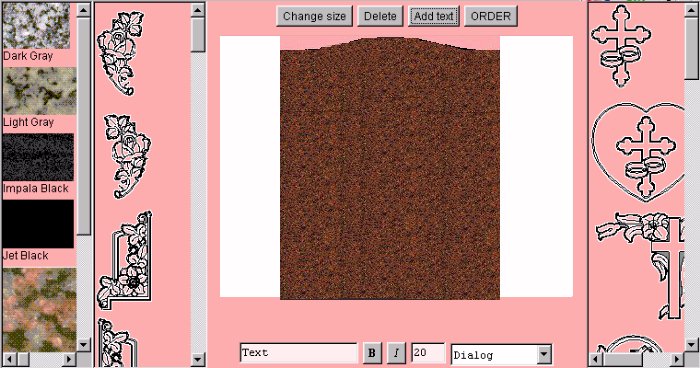 |
Choose your color from the first row on the left.
Choose a design part from the second row. Click
and drag the part wherever you choose. You may delete it at will.
Choose a central design from the far right row.
Click and drag the part wherever you choose. You may delete it at will.
Choose ADD TEXT to have the TEXT DIALOG boxes
appear. Type in the lettering required ONE LINE AT A TIME.
Choose the Bold or Italic
choice buttons and adjust the height of the text by typing in a font
size. Choose the font type in the dialog box on the right. Click on
ADD TEXT again to have the lettering added to the Canvas and drag it
to any position you desire. If you want to enclose it in a
panel, choose a panel from the right row. |
Are you ready? Choose your Drawing
Canvas from the choices below: